 How-to
How to Manage Multiple Nuzlocke Save Files
Table of Contents
- Why Managing Multiple Nuzlocke Save Files Matters
- Understanding Nuzlocke Run Integrity and Save States
- Setting Up Multiple Pokémon Save Files on One Switch
- Using a Nuzlocke Run Tracker to Log Your Progress
- Creating a Nuzlocke Rules Checklist for Each Run
- Building a Nuzlocke Run Log Template
- Managing Completed and Ongoing Runs Without Conflicts
- Keeping Your Nuzlocke Data Safe and Accessible
- Frequently Asked Questions
Last Updated: October 19, 2026
Why Managing Multiple Nuzlocke Save Files Matters
Running multiple Nuzlocke challenges at the same time is exciting. But it's also risky if you don't keep your save files organized. One wrong move and you could overwrite a run you've spent hours building. That's where proper save management comes in.
A Nuzlocke run is a self-imposed challenge playthrough with strict rules. Most players use permadeath rules, meaning fainted Pokémon are permanently boxed or released. When you're juggling several runs with different rulesets, tracking which save belongs to which run becomes critical.
The good news: managing multiple nuzlocke save files is straightforward once you know the mechanics. Whether you're using a Nintendo Switch, emulator, or cartridge, the principles stay the same. You need separation, organization, and backup protection.
Understanding Nuzlocke Run Integrity and Save States
What Makes a Save Valid for Nuzlocke Rules
A valid Nuzlocke save must follow the rules you've set for that specific run. The core rule is simple: if a Pokémon faints, it's considered dead and must be permanently removed from your team. But beyond that, different players use different rulesets.
Some runs allow you to reload a save if you make a mistake. Others treat every battle as permanent, no matter what. The key is consistency within each run. If you're running multiple saves with different rules, you need to document which rules apply to which save file. This prevents confusion and keeps run integrity intact.
Reload vs. Overwrite: Keeping Runs Separate
Here's the critical distinction: reloading means loading a previous save state without saving over it. Overwriting means saving your current progress on top of an old save, erasing what was there.
For multiple Nuzlocke runs, reloading is your friend. You can reload to retry a battle or fix a mistake without losing your run. But overwriting is dangerous. If you accidentally save over the wrong file, you've destroyed an entire run.
This is why separation matters when you manage multiple nuzlocke save files. If each run has its own dedicated save slot or user profile, you can't accidentally overwrite one run while playing another. The file systems on Switch, emulators, and cartridges all support this separation.
Setting Up Multiple Pokémon Save Files on One Switch
Creating Separate User Profiles for Each Run
The Nintendo Switch makes this simple. Each user profile has its own save data for every game. If you're running multiple Nuzlocke challenges on one console, create a separate user profile for each run.
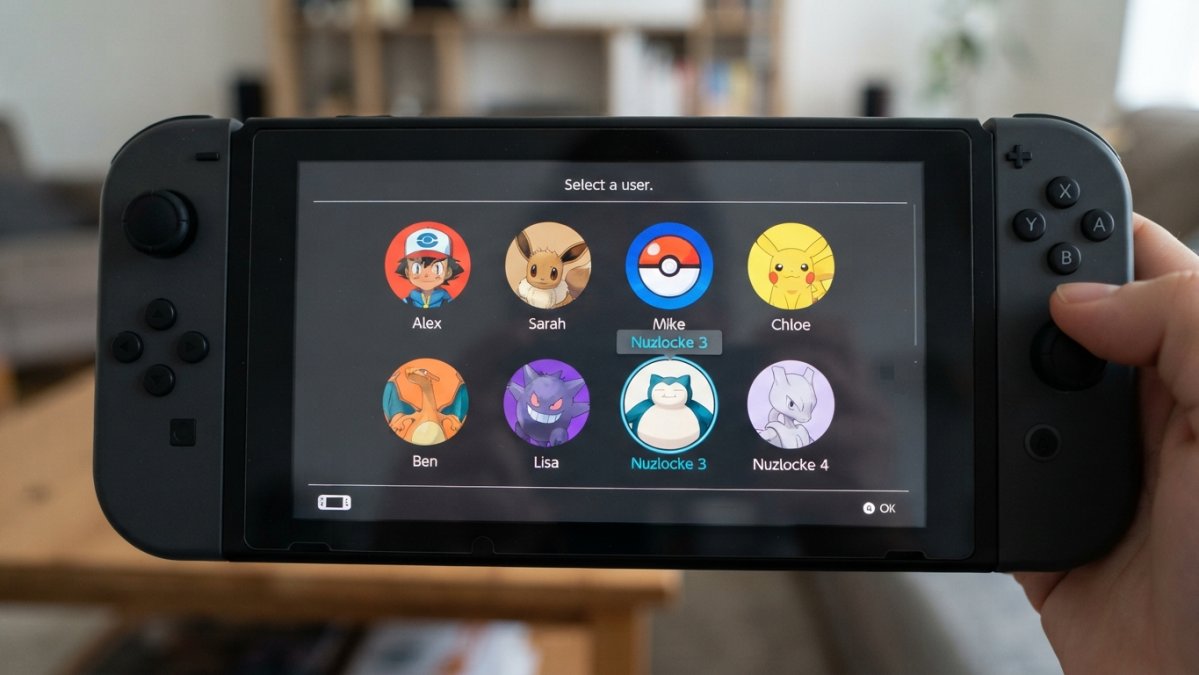
Here's how:
- Go to System Settings on your Switch
- Select "Users"
- Choose "Add User"
- Follow the prompts to create a new profile
- Each profile gets its own independent save files
The advantage is complete isolation. One profile's save data can't touch another's. You could have a Hardcore Nuzlocke on Profile A and a Relaxed run on Profile B, and they'll never interfere.
Each profile can have its own naming convention too. Name them "Nuzlocke - Fire Red" or "Nuzlocke - Hardcore" so you know at a glance which run lives on which profile.
Organizing Save Slots Within a Single Profile
If you prefer to keep everything on one profile, most Pokémon games support multiple save slots. However, this is riskier because you're relying on discipline to never overwrite the wrong slot.
Here's what you need to know:
- Most mainline Pokémon games allow only one save file per profile
- Older games (Gen 1-3 remakes, some emulated versions) sometimes support multiple slots
- Newer games (Scarlet, Violet, Legends Arceus) use cloud saves that sync across profiles
Check your specific game's save system before assuming multiple slots exist. If they don't, use separate user profiles instead. It's not worth the risk of losing a run to save over the wrong file.
Using a Nuzlocke Run Tracker to Log Your Progress
What to Record in Your Run Tracker
A Nuzlocke run tracker is your documentation system. It keeps a record of every important detail about your run so you can review progress, remember team composition, and track which Pokémon have fainted.
Record these details:
- Run name and ruleset (Hardcore, Relaxed, Randomizer, etc.)
- Game version and starting date
- Gym leaders and Elite Four members defeated
- Current team roster with levels and move sets
- Fainted Pokémon and how they died
- Significant battles or close calls
- Current location and next objective
This log becomes invaluable when you're juggling multiple runs. One glance tells you exactly where each run stands and what happened to your team.
Tracking Team Composition and Fainted Pokémon
Your team changes as your run progresses. New catches, level gains, and permanent losses all shift your roster. Tracking this accurately prevents confusion when you switch between runs.
For each team member, record:
- Pokémon species and nickname
- Current level
- Move set
- Ability and nature
- Date caught and location
- Status (active, benched, fainted, boxed)
When a Pokémon faints, mark it with the date and the battle where it died. This creates a memorial of your run's history. It also prevents accidentally using a "dead" Pokémon in future battles if you forget which team members are still alive.
DexTrack helps you organize this data across multiple games and save files. You can track shinies, Alphas, and specific statuses independently for each playthrough, so your Nuzlocke runs stay separate from your main collection tracking.
Creating a Nuzlocke Rules Checklist for Each Run
Different runs need different rules. A Hardcore run plays by strict permadeath. A Relaxed run might allow Pokémon Center visits and item usage. A Randomizer run uses random Pokémon and movesets. Without a clear checklist, you'll forget which rules apply to which save.
Create a simple document for each run:
- Permadeath rule: Do fainted Pokémon get permanently boxed or released?
- Catch limit: Can you catch only the first Pokémon on each route?
- Item restrictions: Are Potions and Full Restores allowed?
- Dupes clause: Can you catch duplicate species?
- Nuzleaf clause: Can you catch Pokémon if your team is full?
- Level cap: Is there a maximum level before gym battles?
- Move restrictions: Are certain moves banned?
- Trainer battles: Must you battle every trainer you encounter?
Print this checklist or save it with your run log. Before each play session, review the rules for that specific run. This takes 30 seconds and prevents rule violations that could invalidate your progress.
Building a Nuzlocke Run Log Template
Essential Fields for Your Log
A Nuzlocke run log template gives you a consistent format to track every run. Here's what to include:
| Field | Purpose | Example |
|---|---|---|
| Run Name | Quick identifier | "Emerald Hardcore" |
| Ruleset | Rules for this run | Permadeath, Dupes Clause, Level Cap: 2 levels above gym leader |
| Start Date | When the run began | October 15, 2026 |
| Current Status | Active, completed, or abandoned | Active |
| Current Location | Where you are now | Route 7, heading to Celadon City |
| Team Size | How many Pokémon you have | 4/6 |
| Fainted Count | Total deaths so far | 2 |
| Closest Call | Most dangerous battle | Nearly lost Pikachu to Brock's Onix |
Use this template for every run. Consistency makes it easy to jump between saves without losing track of where you are or what happened.
Backing Up and Restoring Save Data Safely
Your save files are precious. A system crash, accidental deletion, or corrupted file could wipe out hours of progress. Backing up your saves is essential for any serious Nuzlocke player.
On Nintendo Switch:
- Enable cloud saves in System Settings > Data Management
- Cloud saves automatically back up your progress
- If your save gets corrupted, you can restore from the cloud backup
- Note: Cloud saves require a Nintendo Switch Online subscription
On emulators:
- Save files are typically stored in a specific folder on your computer
- Copy this folder to an external drive or cloud storage (Google Drive, Dropbox)
- If the emulator crashes, restore from your backup
- Back up after major milestones (gym victories, new team members)
On cartridges:
- Physical cartridges don't have built-in backup systems
- Use a save backup device if you have access to one
- Otherwise, treat your cartridge save as permanent and play carefully
Backup frequency matters. Back up after big battles, new team additions, or whenever you've made significant progress. A backup takes seconds and saves you from disaster.
Managing Completed and Ongoing Runs Without Conflicts
Naming Conventions for Save Organization
Clear naming prevents confusion. Use this naming system:
- Format: [Game] - [Ruleset] - [Status] - [Date Started]
- Example: "Emerald - Hardcore - Active - Oct2026"
- Completed example: "FireRed - Casual - Complete - Sep2026"
For Switch user profiles, name them similarly:
- "Nuzlocke - Emerald - Hardcore"
- "Nuzlocke - LeafGreen - Relaxed"
- "Main Save - Scarlet"
This system tells you at a glance what each save contains. You won't accidentally load the wrong run or forget which game version you're playing on which profile.
Handling Accidental Deletion or Lost Progress
Accidents happen. You might delete a save by mistake or have a file corrupted. Here's how to recover:
If you have a backup:
- Restore from your cloud backup (Switch) or external drive (emulator)
- This is why backups matter
If you don't have a backup:
- Check if your system has a recovery feature (some systems keep deleted files temporarily)
- For emulators, check your recycle bin or system trash
- If recovery fails, the run is likely gone
The lesson: back up regularly so you're never in this position. One backup saves you from this heartbreak.
If a run is truly lost:
- Document what you remember (team composition, progress, deaths)
- Decide whether to restart the run or move on to a new one
- Some players restart lost runs to recapture the experience
- Others accept it as part of the Nuzlocke challenge
Keeping Your Nuzlocke Data Safe and Accessible
Your Nuzlocke runs are investments of time and emotion. Protecting that data matters. Here's your final checklist:
- Use separate user profiles or save slots for each run
- Document your ruleset for every run
- Keep a detailed run log with team composition and progress
- Back up your saves regularly to cloud storage or external drives
- Use clear naming conventions so you never load the wrong save
- Check your backup system works before you need it
Instead of juggling spreadsheets and scattered notes, you have one place to log your Nuzlocke progress, track team rosters, and organize your collection. You can manage main saves, Nuzlockes, and replays independently without confusion.
Managing multiple Nuzlocke save files requires organization, but it's worth the effort. Losing a run to a careless save overwrite is painful. Losing it to a corrupted file you didn't back up is worse. Set up your system right, name your files clearly, and back up regularly. Your future self will thank you when you're deep into a run and need to switch between saves without losing progress.
Frequently Asked Questions
How do you keep track of multiple Nuzlocke runs?
Use a dedicated run tracker or log template to record each run separately. Document your team composition, rules checklist, fainted Pokémon, and key battles for each run. Store logs with clear naming conventions (e.g., 'Emerald_Nuzlocke_Run1', 'FireRed_Randomizer_Run2') so you never confuse ongoing runs. Separate save files on different user profiles or save slots prevent accidental overwrites.
Can you have multiple Pokémon save files on one Switch?
Yes. Create separate user profiles on your Switch, each with its own save file for the same game. Alternatively, some games support multiple save slots within a single profile. This approach lets you run a main playthrough and a Nuzlocke run simultaneously without losing either. Check your specific game's save system to confirm which method it supports.
What should you do if you lose Nuzlocke save data?
If save data is deleted accidentally, check if your console has a backup feature or cloud save enabled. For cartridge-based games, the save may be recoverable depending on how it was lost. Going forward, back up your save files regularly by copying them to external storage or a cloud service. Maintain detailed run logs so you can reconstruct progress if needed, though the save file itself cannot be replaced once overwritten.
How should you record a Pokémon's death in a Nuzlocke?
In your run log or tracker, note the date, location, opponent, and circumstances of each fainted Pokémon. Record the Pokémon's name, level, and moves at the time of death. This creates a permanent record separate from your save file, helping you track your team's journey and remember fallen members. Many players use a dedicated template to standardize this information across all their runs.